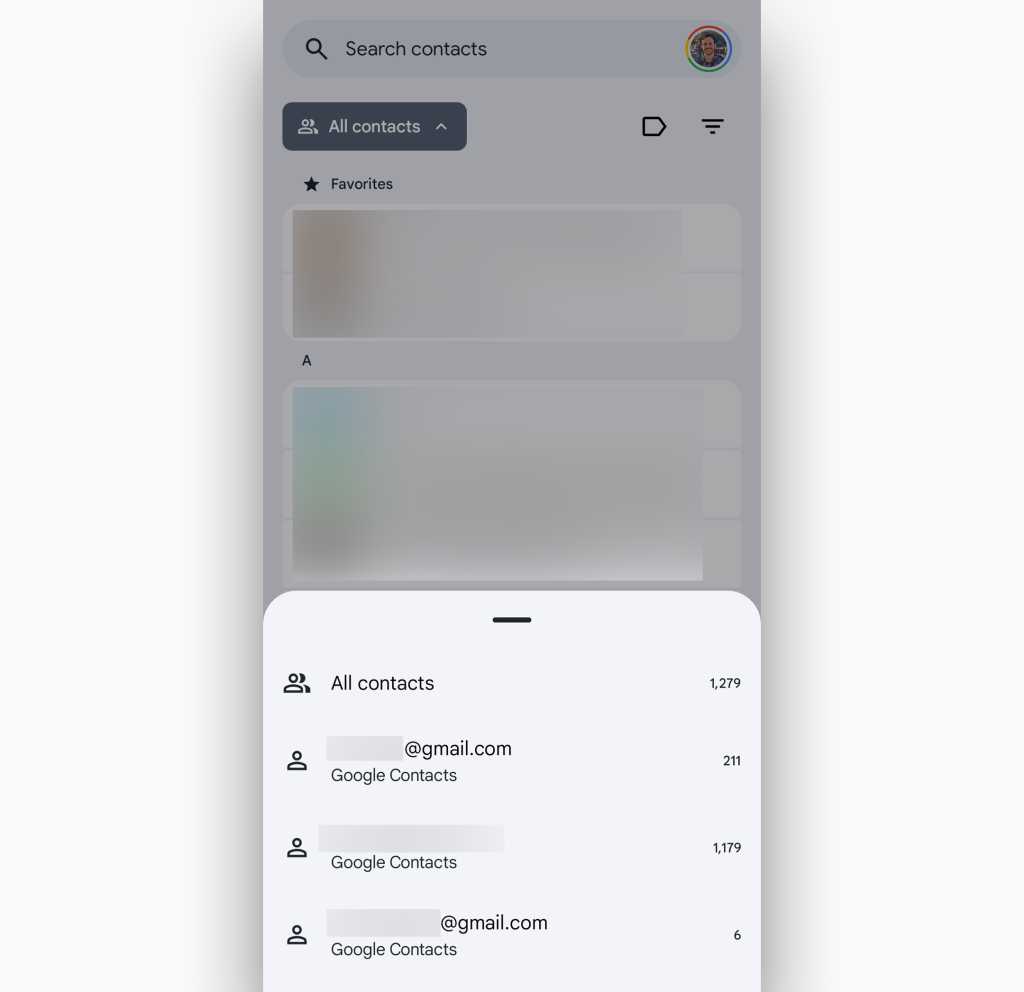
The Google Contacts app makes it easy to see contacts from individual accounts or all of your connected accounts together.
JR Raphael / Foundry
If you tap the triangular three-line icon to the right of the “All contacts” dropdown, meanwhile, you’ll find a few filtering options that could be helpful as alternatives to the large search bar at the top of the screen — if, for instance, you need to find a contact and only know the name of their company but also can’t quite think of that company’s name and need a prompt. Tap that icon, select “Company,” and you’ll see a list of every company name in your contacts that you can scroll through and select to apply as a filter.
Finally, if you tap the outlined arrow-like shape to the left of the filter icon, you’ll see a list of any labels you’ve created for your contacts. Labels in Google Contacts work exactly like labels in Gmail: You can create as many as you like, and you can apply any number of labels onto any given contact. They’re less like folders, in other words, and more like stickers — or, y’know, labels — in that there’s no limit to how many any particular contact can have.
So why would you want to bother with labels, you might be wondering? Well, I’ll tell ya: They’re a splendid way to break that mess of mammals in your life down into specific, meaningful groups instead of always viewing ’em in one gigantic lump.